Creating a new counterparty and filling in YouControl data
Creating a new counterparty and filling in YouControl data
Open the page with the list of Customers or Vendors and create a new counterparty card.
If the counterparty does not need to be checked using the YouControl functionality, enable the Block Check YouControl field, otherwise it will leave this field unchanged.
Go directly to the Payments tab, specify Company or Person in the Partner Type field,

and fill in the EDRPOU code field for a legal entity and the VAT Registration No field for an individual on the Invoicing tab.
The functionality supports automatic address parsing and automatic filling of the Address & Contact fields based on YouControl’s updated address structure. The application processes the structured addressParts block returned by the YouControl API, which includes:
- ZIP code
- Country
- Region
- District
- City
- City type
- Street
- Street type
- Building
- Apartment
- Apartment type
These values are automatically applied to:
- To the counterparty card, in the appropriate address fields.
- To the table United State Register Log to save the history of the information received.
- To the table Postal codes, if such a postal code does not yet exist in the system.

After entering the EDRPOU codes and VAT Registration No codes for the counterparty, requests which, in Setting up integration with YouControl, have the Field Validation value in the Check Action field will be automatically executed. For example, for Automatic Fill Details and United State Register queries, the values of such counterparty fields as Name, Full name, Address are automatically filled in.
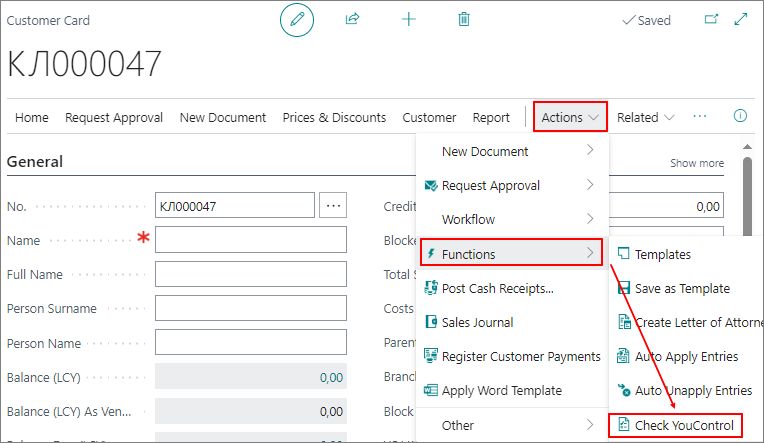
To make additional requests to the YouControl online service, set Manual run in the Check Action field in YouControl Integration Setup, and the user will need to click Actions -> Functions -> Check YouControl on the pages of Customers or Vendors.
If the Counterparty name change warning option is enabled in the YouControl Integration Setup, the system compares the counterparty name received from the United State Register request with the name received during the previous request. If the name has changed, a warning is displayed to the user, and information about the change is saved in the YouControl request history and displayed in the Additional Information field.
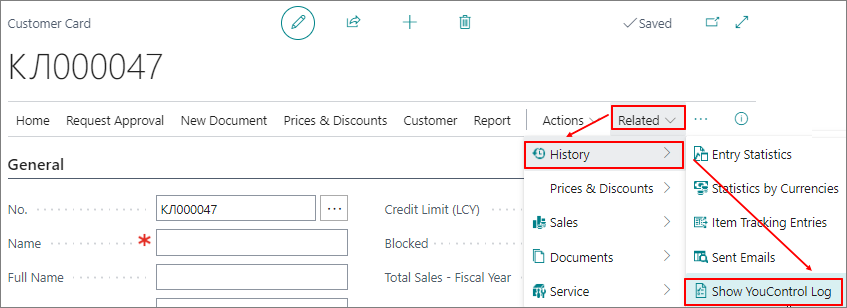
To view the history of requests to the YouControl online service on the Customer or Vendor page, click Related -> History -> Show YouControl log on the toolbar: