File Creation and XML Export
To create and export the audit file, use the Audit File Export Documents page. On the export file document page, you can verify data before generation, generate, view and edit preview tables, create audit files, and export them.
Creating an Audit File Export Document
- Click the
 button to open the Search function and enter Audit File Export Documents, then follow the corresponding link.
 - On the Audit File Export Documents page, click New.
- A page for a new Audit File Export Document will open.
On the General tab, fill in the following fields:
| Field | Description |
|---|---|
| Audit File Export Format | Specifies the format used for exporting the audit file. |
| GL Account Mapping Code | Specifies the GL account mapping code that represents the reporting period. |
| Starting Date | Specifies the start date of the reporting period. |
| Ending Date | Specifies the end date of the reporting period. |
| Split By Month | Specifies whether multiple audit files will be created for each month. |
| Split By Date | Specifies whether multiple audit files will be created for each day. |
| Split By Size | Specifies whether the automatic XML export file splitting algorithm is enabled when the maximum file size limit is exceeded. |
| Archive to Zip | Specifies that all files will be packed into a Zip archive. Populated automatically according to the Audit File Format setting. |
| Create Multiple Zip Files | Specifies that multiple Zip files will be created. |
| Director Code | Specifies the employee code of the company director. Populated automatically according to Company Information settings. |
| Accountant Code | Specifies the employee code of the company's internal accountant. Populated automatically according to Company Information settings. |
| Director's Order (No., Date) | Specifies the number and date of the order (or other document) regarding appointment/dismissal from the director position. |
| Accountant's Order (No., Date) | Specifies the number and date of the order (or other document) regarding appointment/dismissal from the accountant position. |
If you need to limit the export data by global dimension values, fill in the fields on the Filters tab.
On the Processing tab, fill in the following fields:
| Field | Description |
|---|---|
| Parallel Processing | Specifies whether the created audit file will be processed by parallel background tasks. |
| Max No. of Jobs | Specifies the maximum number of background tasks that can run simultaneously. |
| Earliest Start Date/Time | Specifies the earliest date and time for the background task to execute. If left blank, execution will start immediately after launch. |
Note If for the audit file export document the value Parallel Processing = Yes and the Maximum No. of Jobs is specified for generating preview tables in background mode by separate jobs, it is important to check on the Scheduled Tasks page the number of tasks that populate preview tables for SAF-T — codeunit 71732190 SMA Audit Line Preview Runner. If the number of running tasks exceeds the Maximum No. of Jobs specified for the audit file export document, the preview tables will not be generated in background mode. In this case, we recommend clearing all tasks of codeunit 71732190 on the Scheduled Tasks page.
On the Audit File Export Document page, click Data Check to verify whether the data is ready for export to the audit file. At this stage, the system checks the completion of required fields in the Audit File Export Setup, as well as data in all directories marked in the Audit File Export Setup under the Data Check section.
Next, click Preview Data Check. On the Preview Data Check page, click Run Check. At this stage, the following are verified:
- Key References — checks the presence of keys in the corresponding master file tables;
- Mandatory Fields — checks the completion of mandatory fields for data that enters the preview tables;
- Preview Table Balance — checks the balance consistency of amounts.
After passing the check, the value in the Preview Data Check Status field in the General section will change to Check Passed.
To determine the first event in transactions, click First Event Mapping in Transaction Types. The value in the Transaction Type Mapping Created field in the General section will change to Yes. To review and edit the determined transaction type, click Transaction Type Mapping.
Creating a Preview Table
On the Audit File Export Document page, click Generate Preview Tables.
In the Preview Data section, data types specified in the Audit File Export Format Setup are displayed. For each table, the following fields are available:
| Field | Description |
|---|---|
| Audit File Export Data Type | Specifies the SAF-T report table for which data is generated in the preview table. |
| Status | Specifies the status of the generation of the selected audit preview data. |
| Session Status | Specifies the status of the background session: active, scheduled, stalled, or not running. To monitor and manage active and scheduled background sessions in detail, use the SAF-T Background Process Manager page (see the section below). |
| Progress | Specifies the progress of the generation of the selected audit preview data. |
| No. Of Retries | Specifies the number of remaining retry attempts. |
| Earliest Start Date/Time | Specifies the earliest date and time when the background task can be executed. |
| Created Date/Time | SSpecifies the date and time when the generation of the selected audit preview data was completed. |
| No. of Records | Specifies the number of records in SAF-T report table for which data is generated in the preview table. |
| Related Records | Specifies the number of records in SAF-T report related table for which data is generated in the preview table. |
Data is available for viewing and editing. To open the preview table for a specific data type, click the Record Count or Related Records link.
If you need to recreate one or more preview tables, select them and click:
- Recreate Preview Data — the table will be created in the current user session; other user actions will be blocked until the table generation is complete.
- Restart - the restart behavior depends on the value of the Earliest start date/time field:
- If the Earliest start date/time field is specified for a preview table record, clicking this button changes the record status to In progress. However, the actual regeneration of data and update of the creation date/time will be performed by the background job queue strictly at the date and time specified by the user.
- If the Earliest start date/time field is blank, regeneration starts immediately (as soon as a background task becomes available, according to the general Parallel processing settings of the audit file document).
- Cancel - select if you need to cancel the preview table creation. If multiple preview table generation tasks are running in parallel, you can stop or cancel them individually or in bulk by using the SAF-T Background Process Manager page.
Creating XML Files and Exporting
To create the audit file, click Start on the Audit File Export Document page. Repeatedly clicking Start automatically stops all previously running background sessions and parallel processing tasks for the current document, clears obsolete processes from the task queue, and restarts XML file generation using the current settings without causing processing conflicts. On the Processing tab, audit file rows will be populated, depending on the settings specified in the General section — Master Data, General Ledger Entries, and Source Documents files. The rows contain information about Progress, Status, Creation Date and Time, and Audit File Name (which can be edited). To refresh the status, click Refresh in this section. To export all files in a Zip archive, click Download Files. To export an individual audit file, select the required row and click Lines > Download as File.
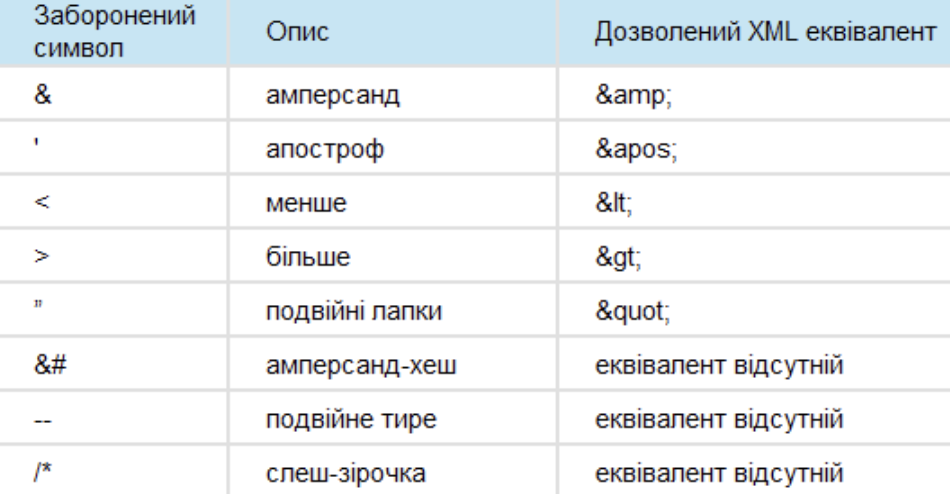
Note According to the SAF-T UA Detailed Technical Description, character-type indicator values must not contain the following forbidden characters that cannot be exported to XML:
Monitoring and Managing Background Processes (SAF-T Background Process Manager)
To provide full control over parallel processes during both preview table generation and XML file creation, a centralized task management tool is available. To open the task management page, select Related > Background Process Manager on the document action pane. The SAF-T Background Process Manager page provides detailed visibility into current tasks and flexible management capabilities. It displays the overall document status, the number of active background sessions, and scheduled tasks. The following monitoring and management features are available:
- Summary pane: Displays the unique document ID, the current Document Status, and the number of Active Sessions, Scheduled Tasks, and Stuck sessions in the queue.
- Active sessions tab: Displays a list of processes that are currently running, including (the Task name, Session ID, Login Datetime and User ID). The Stop session button allows you to forcibly terminate the selected session.
- Scheduled tasks tab: Displays the queue of upcoming tasks. The Cancel Task button removes the selected task from the queue, while the Cancel All button (or the Cancel All Scheduled button on the action pane) clears all scheduled tasks for the document.
Splitting Audit Files by Size
When the Split by Size option is enabled during export, the system automatically calculates the expected size of the generated XML files based on the number of records in the preview tables and the global size limit settings configured in the system.
Algorithm Overview When file generation starts, the system analyzes each preview table individually. The estimated data volume is calculated by multiplying the actual number of records by the estimated size of a single record defined for the corresponding data type: Estimated size (bytes) = Number of preview records × Estimated record size (bytes)
Example Assume that the Trial Balance table contains 424 records and the estimated size of a single record for this data type is 2,500 bytes. The calculated size is: 424 × 2,500 = 1,060,000 bytes (~1.01 MB)
- If the estimated size does not exceed the maximum file size limit (for example, 500 MB), all data is written to a single XML file.
- If the estimated size exceeds the configured system limit, the application automatically splits the data type into multiple sequential parts. Multiple processing records (files) are created, with corresponding suffixes added to the file names, such as Part 1, Part 2, and so on.
Note The estimated XML file size is calculated solely based on the number of top-level records in the preview table. For certain data types, such as business partners or source documents, a single record may contain a significant number of child XML elements and document lines, which can substantially affect the size of the resulting XML file. As a result, the actual file size may differ from the estimated value. If the generated files are consistently larger than expected or unevenly distributed across parts, adjust the Estimated record size (bytes) parameter for the corresponding data type in the export format setup.