Payslip
Path: Reports / Payslip
Using the Payslip report, you can generate a custom printed form of a payslip, which will be generated according to a specified template and settings.
Report generation settings
Path: Administration / Payslip Setup Codes
You can create an unlimited number of report templates and settings.
In the settings, you can add or change a report template, as well as the report generation algorithm.
When adding new columns to the template, they need to be given a name, which will then need to be specified in the generation settings:
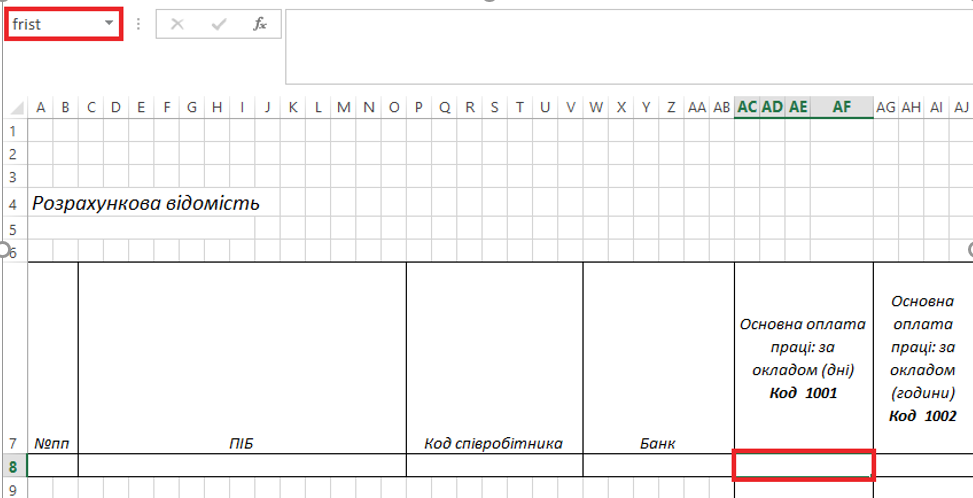
For the Total line in the template, each new column needs to be named Total and have a sequential number:
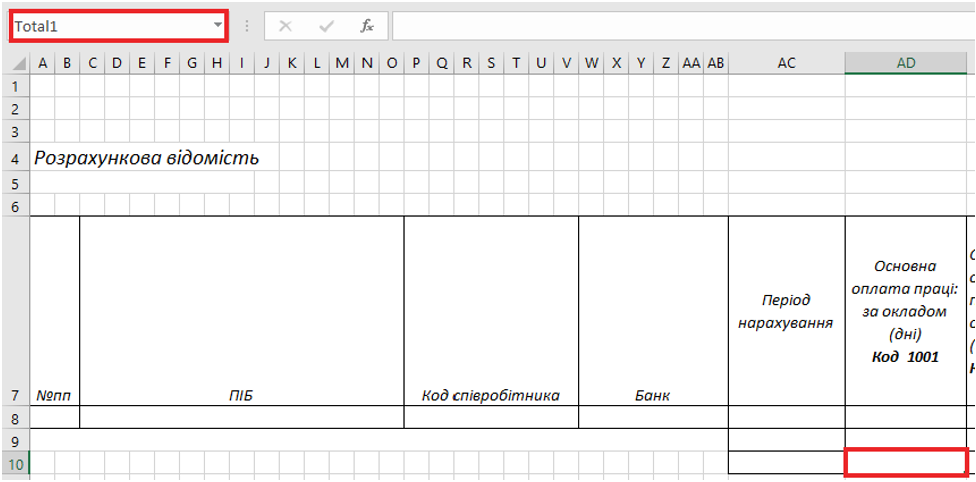
For the Total line by employee in the template, each new column needs to be named EmplTotal and have a sequential number:
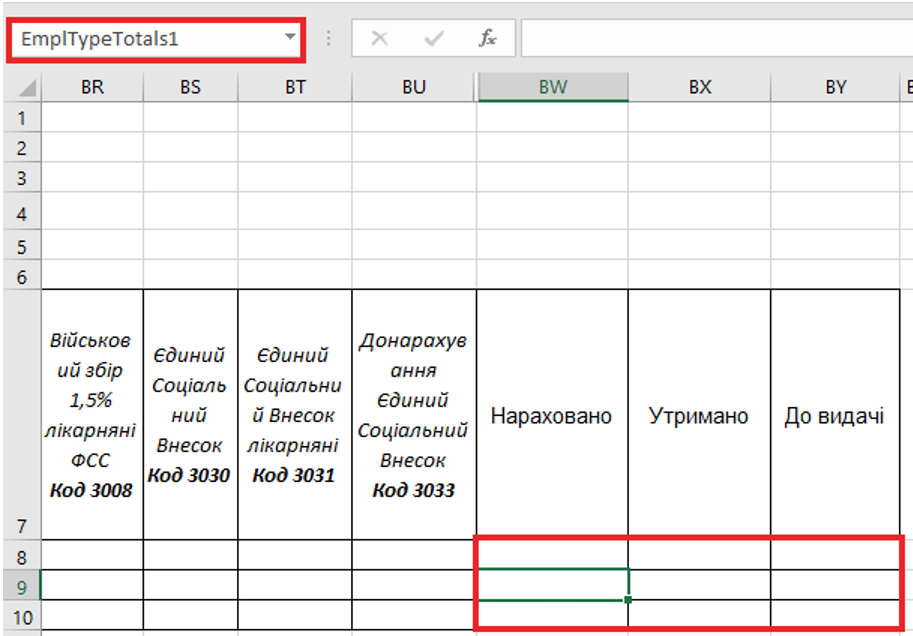
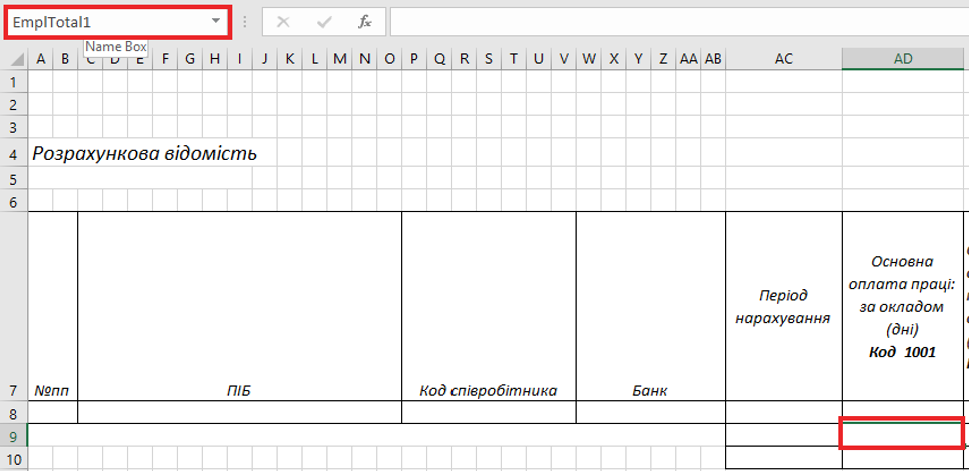 For the "Accrued", "Deducted", "To be issued" columns which are calculated automatically according to the "Total Code" setting.
In the template, these cells must have the following names: TypeTotals1, TypeTotals2, TypeTotals3 – for the line with accrual; EmplTypeTotals1, EmplTypeTotals2, EmplTypeTotals3 – for the total line by employee; TypeTotalsGlob1, TypeTotalsGlob2, TypeTotalsGlob3 – for the overall total line.
For the "Accrued", "Deducted", "To be issued" columns which are calculated automatically according to the "Total Code" setting.
In the template, these cells must have the following names: TypeTotals1, TypeTotals2, TypeTotals3 – for the line with accrual; EmplTypeTotals1, EmplTypeTotals2, EmplTypeTotals3 – for the total line by employee; TypeTotalsGlob1, TypeTotalsGlob2, TypeTotalsGlob3 – for the overall total line.
In the generation settings, do the following: • Add new lines for new columns. • Line code – number in the generation order. For the order to be correct, you must use codes 1001, 1002, etc. Please note that when displaying payroll data in the interactive on-screen matrix view through the Payroll Overview, columns will be displayed according to their Line Code order in the setup. To change the row order, update the Line Code (to move a row up or down). • Filter by element code. Specify the value of the element, the amounts for which will be included in the new columns. • Function code. SUM BY SOURCE. • Excel cell. Cell name for the new column specified when editing the template. In addition, for each Excel cell, the Total and EmplTotal names (as defined in the Excel template) must be entered in the Total Excel Cell and Empl. Total Excel Cell fields. If totals are not defined in the Excel template, these fields do not need to be populated. If the Line Code is changed, it is not necessary to update the values in the Excel Cell, Total Excel Cell, or Empl. Total Excel Cell fields. • Description. To ensure that column names in the interactive on-screen matrix view through the Payroll Overview are displayed using a more descriptive and meaningful label instead of the Line Code, you can enter such a description in this field. The column header will then be displayed using the value specified here.
Running report generation
Path: Reports/Payslip
[!TIP] For an interactive on-screen matrix view of payroll data with charts, drill-down, and tree views, see Payroll Overview.