Creating a credential for data transfer
Select the search icon in the top right corner  to open the Search function. Enter MDM Sender Credentials in the search field and click on the corresponding link. The MDM Sender Credentials page will display a list of available accounts for data sending.

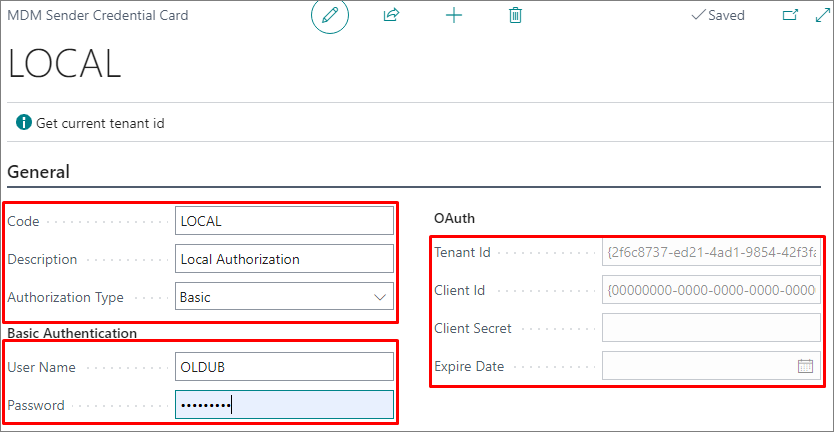
To create a new account, click on the New button  . In the opened MDM Sender Credential Card window, fill in the relevant fields:
a. General tab:
| Field | Description |
|---|---|
| Code | Enter the code for the data sending account. |
| Description | Enter the description for the data sending account. |
| Authorization Type | Specify the authorization type for the data sending account. |
b. Basic Authentication tab:
| Field | Description |
|---|---|
| User Name | Enter the username for identification. |
| Password | Enter the password for identification. |
c. OAuth tab (for Entra app registration):
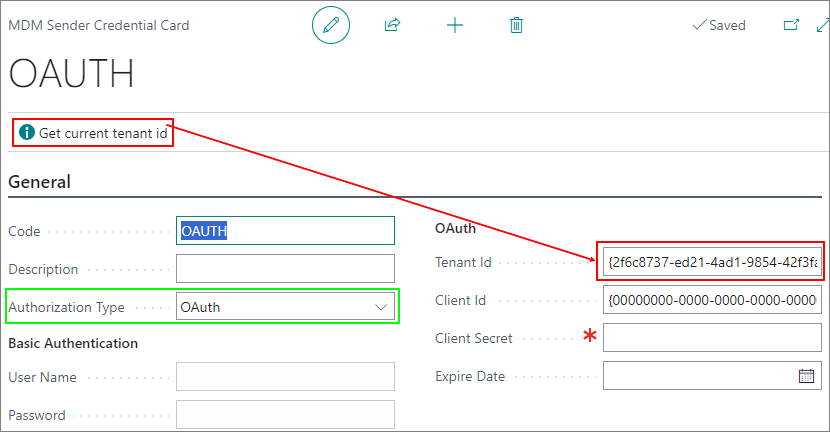
|Field|Description| |----|----|| |Tenant Id|The Entra (Azure AD) tenant ID of the destination environment. Use Get current tenant ID to auto-fill if sender and receiver are in the same tenant.| |Client Id|The Client ID from the Entra app registration. This same Client ID must be registered in Entra Applications on the receiver side.| |Client Secret|The Client Secret from the Entra app registration.| |Expire Date|The expiration date of the client secret. Set a reminder to renew before expiry.|
Click the Get Current tenant ID button to get the current tenant ID when creating a sender account with the authorization type "OAuth":