Księgowanie walutowe
Uwaga, aby obsługa operacji walutowych w module płacowym działała poprawnie, dla pracownika musi być dostępne księgowanie walutowe operacji poprzez Dziennik finansowy.
Krok 1 Warunki umowy o pracę w walucie
Warunki umowy w walucie można dodać na wszystkich podstawowych stronach z warunkami umowy:
- Domyślne warunki umowy o pracę
- Ustawienia warunków umowy o pracę z karty Stanowiska
- Warunki umowy o pracę z karty Umowy o pracę.
Za warunki walutowe na wyżej wymienionych stronach odpowiadają następujące pola:
| Pole | Opis |
|---|---|
| Kod waluty | Należy wybrać kod waluty, który będzie stosowany dla danego naliczenia lub potrącenia. |
| Użyj oryginalnej waluty | Ustawienie określające, w jakiej walucie będzie prowadzone księgowanie danej operacji. Jeśli ustawienie = Tak, to podczas księgowania zostaną utworzone operacje w oryginalnej walucie (WO). Jeśli ustawienie = Nie, to podczas księgowania zostaną utworzone operacje w walucie lokalnej (LOK). Wartość można ustawić tylko wtedy, gdy pole Kod waluty jest wypełnione. |
Wartości pól są przenoszone do powiązanych tabel podczas zatwierdzania/tworzenia następujących rekordów:
- Z Domyślnych warunków umowy o pracę do Ustawień warunków umowy o pracę z karty Stanowiska podczas tworzenia Stanowiska
- Z Ustawień warunków umowy o pracę z karty Stanowiska do Warunków umowy o pracę z karty Umowy o pracę podczas wykonywania akcji Utwórz warunki umowy
- Z Warunków umowy o pracę z karty Umowy o pracę do Księgi operacji elementów płacowych podczas zatwierdzania wiersza umowy o pracę
Ponadto, na karcie stanowiska, w sekcji Wynagrodzenie, jeśli wynagrodzenie zasadnicze na stanowisku jest ustalane w walucie, należy wskazać walutę w polu Kod waluty.
Uwaga, jeśli dla Wynagrodzenia zasadniczego na karcie stanowiska określony jest jeden kod waluty, a w Ustawieniach warunków umowy o pracę dla Stanowiska istnieją dodatki, dla których kwota jest ustalona w innych walutach, to kwota takich dodatków nie zostanie przeniesiona do pola Dodatek na karcie Stanowiska i odpowiednio nie zostanie wyświetlona w polu Wynagrodzenie miesięczne razem z kwotą wynagrodzenia zasadniczego.
Krok 2 Operacje walutowe w dokumencie płacowym
Dla operacji, dla których w Księdze operacji elementów płacowych określone są ustawienia Kod waluty oraz Użyj oryginalnej waluty — te ustawienia zostaną przeniesione do wiersza Dokumentu płacowego w pola o tych samych nazwach.
Dla operacji, dla których w wierszach Dokumentu płacowego określony jest kod waluty, obliczany jest Współczynnik kursu walutowego — kurs oryginalnej waluty do waluty lokalnej na Datę księgowania.
Dla operacji, dla których określony jest kod waluty, oprócz pola Kwota wynagrodzenia (LOK) — kwota wynagrodzenia w walucie lokalnej, wypełniane jest pole Kwota wynagrodzenia (WO) — kwota wynagrodzenia w oryginalnej walucie.
Wypełnianie tych pól należy zdefiniować w algorytmie obliczania elementu płacowego. Do konwersji operacji walutowych wykorzystywane są następujące funkcje obliczania wynagrodzeń:
| Funkcja | Opis |
|---|---|
| 21094089 | Obliczenie Kwoty wynagrodzenia (LOK) od Kwoty wynagrodzenia (WO) na podstawie Współczynnika kursu walutowego. |
| 21094090 | Obliczenie Kwoty wynagrodzenia (WO) od Kwoty wynagrodzenia (LOK) na podstawie Współczynnika kursu walutowego. |
| 21094091 | Kopiowanie kodu waluty dla Netto Sallary |
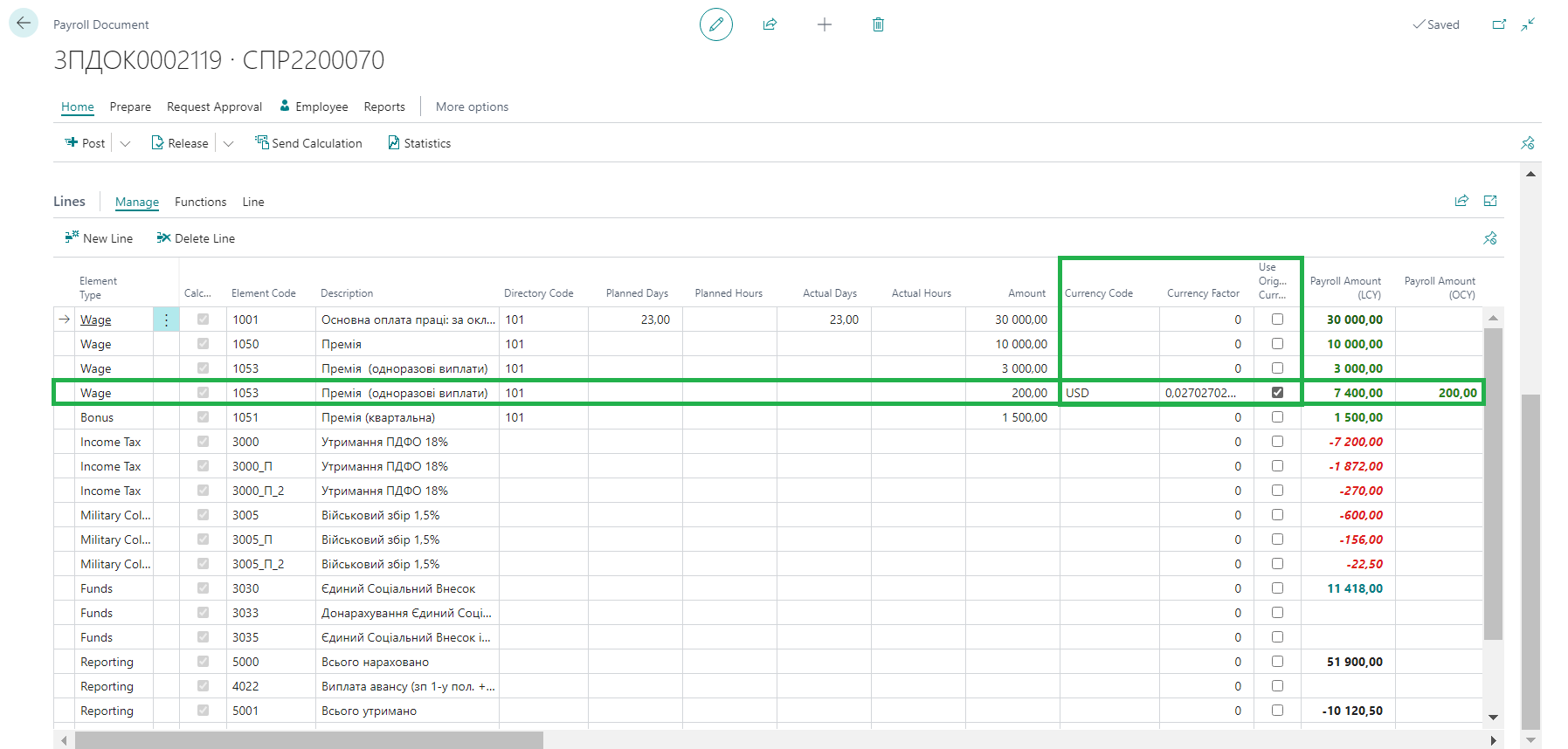
Podczas księgowania dokumentu płacowego wartości wszystkich wyżej wymienionych pól dla wierszy z operacjami walutowymi są przenoszone do pól o tych samych nazwach w wierszach Zaksięgowanego dokumentu płacowego.
Krok 3 Księgowanie operacji walutowych
Księgowanie operacji, dla których ustawiony jest Kod waluty, zależy od wartości w polu Użyj oryginalnej waluty dla tych operacji.
Jeśli „Użyj oryginalnej waluty" = Nie
Przy takim ustawieniu operacje walutowe we wszystkich powiązanych tabelach są księgowane w walucie lokalnej. A mianowicie:
- W Księdze operacji Pracownika tworzony jest jeden wiersz z kwotą wszystkich naliczeń w walucie lokalnej (z uwzględnieniem standardowych filtrów grupowania wg Dodatkowej grupy księgowej, Źródła wypłaty, Numeru polecenia kadrowego itp.)
- Podczas tworzenia operacji Księgi głównej nie następuje żadne dodatkowe grupowanie wg kodu waluty dla operacji walutowych. Operacje są grupowane razem z operacjami w walucie lokalnej (tworzona jest jedna paczka z uwzględnieniem standardowych filtrów grupowania).
- Operacje w pozostałych tabelach tworzone są w walucie lokalnej.
Jeśli „Użyj oryginalnej waluty" = Tak
Przy takim ustawieniu operacje walutowe są księgowane w następujący sposób:
- W Księdze operacji Pracownika tworzony jest osobny wiersz dla naliczenia walutowego z kwotą w oryginalnej walucie. Kwota pozostałego salda wyświetlana jest w dwóch polach: Kwota salda w oryginalnej walucie i Kwota salda w walucie lokalnej. Do operacji walutowej stosowane są potrącenia i płatności w tej samej walucie.
- Podczas tworzenia operacji Księgi głównej następuje dodatkowe grupowanie wg kodu waluty (z uwzględnieniem standardowych filtrów grupowania). Dla operacji z jednym kodem waluty tworzona jest osobna paczka. Przy czym sama kwota takiej operacji w księgowaniu podawana jest w walucie lokalnej.
- Operacje w pozostałych tabelach tworzone są w walucie lokalnej.
Należy zwrócić uwagę, że jeśli w dokumencie płacowym jest kilka operacji w różnych walutach, to każda z nich podczas księgowania jest dodatkowo filtrowana i grupowana wg Kodu waluty.
Podczas księgowania operacji walutowych informacje o Kodzie waluty, Współczynniku kursu walutowego, ustawieniu „Użyj oryginalnej waluty", Kwocie wynagrodzenia (LOK), Kwocie wynagrodzenia (WO) są przenoszone do powiązanych tabel.
Krok 4 Wypłata wynagrodzenia w walucie
W nagłówku Zestawienia do wypłat dodano możliwość wybrania w polu Kod banku firmy konta walutowego. Uwaga, aby pracownikowi zaproponowane zostały płatności w walucie, na karcie Pracownika musi być ustawiony odpowiedni Kod banku firmy, który będzie wskazany w nagłówku Zestawienia do wypłat.
Tworzenie płatności walutowych dla pracowników odbywa się za pomocą raportu Zaproponuj płatności pracownikowi w Zestawieniu do wypłat.
W parametrach raportu dodano ustawienie Filtruj wg oryginalnej waluty. Przy aktywnym ustawieniu system dobiera kwoty do zestawienia wg otwartych operacji z kodem waluty odpowiadającym walucie na karcie banku Firmy w nagłówku zestawienia do wypłat. Kwoty są tworzone w oryginalnej walucie.
Zaproponowanie płatności w walucie można również wykonać przez Dziennik płatności za pomocą raportu Zaproponuj płatności pracownikom. Podczas przetwarzania zapytania system utworzy płatności dla wszystkich otwartych operacji, zarówno w LOK, jak i w WO. Kwota każdej płatności będzie określana w oryginalnej walucie operacji naliczenia wg kwoty salda.
Krok 5 Wielowalutowe płatności wynagrodzeń
W systemie istnieje możliwość skonfigurowania proponowania płatności w walucie innej niż waluta naliczenia.
W tym celu na stronie Ustawienia modułu kadr i płac w sekcji Rozliczenia walutowe w polu Kurs płatności dla różnych walut należy wskazać ustawienie określające kurs przy tworzeniu wielowalutowych płatności.
W zależności od wybranego ustawienia, jeśli w parametrach uruchamiania zadania Zaproponuj płatności pracownikowi ustawienie „Filtruj wg oryginalnej waluty" = Nie, to kwoty salda z Księgi operacji pracownika (lub z dokumentu płacowego, jeśli wypłata jest międzyokresowa) są konwertowane na walutę banku firmy wskazanego w nagłówku zestawienia do wypłat, wg następującego kursu:
| Opcja | Opis |
|---|---|
| Data płatności | Kurs na datę księgowania zestawienia do wypłat |
| Data dokumentu płacowego | Kurs na datę księgowania dokumentu płacowego |
| Kwota LOK | Kwoty w walucie lokalnej (obliczone na datę księgowania dokumentu płacowego) są konwertowane na walutę banku wg kursu na datę księgowania zestawienia do wypłat |
Uwaga, niezależnie od wybranego ustawienia określającego kurs konwersji kwoty płatności na walutę banku nadawcy, kwota w walucie lokalnej jest zawsze określana na Datę księgowania zestawienia do wypłat.
Krok 6 Korekta kursów walutowych
Korekta kursów walutowych wykonywana jest za pomocą zadania Korekta kursów walutowych. Szczegółowy opis logiki działania zadania opisany jest w Korekta kursów walutowych.
W celu skorygowania operacji walutowych dla Pracownika, w parametrach uruchamiania zadania należy ustawić Korekta Pracowników = Tak i wypełnić pozostałe parametry uruchamiania zadania (szczegółowy opis wszystkich parametrów znajduje się pod linkiem Korekta kursów walutowych).
Podczas wykonywania zadania system analizuje otwarte operacje Księgi pracowników i w przypadku powstania różnicy kursowej, zadanie wsadowe tworzy nową szczegółową operację w księdze operacji pracownika, która odzwierciedla skorygowaną kwotę operacji w księdze pracownika.
Uwaga, domyślnie zawsze korygowane są operacje z typem — pusty (tj. naliczenia pracownika). Jednocześnie, jeśli na stronie Ustawienia KG opcja Korekta różnic kursowych dla przedpłat = Tak, to korygowane są również operacje z typem Płatność.
Zmienność kursu określa typ utworzonej szczegółowej operacji w księdze pracownika:
Dla otwartych operacji z typem — Płatność:
-
jeśli kurs w parametrach uruchamiania zadania Korekta kursów walutowych > niż kurs na datę księgowania operacji, w Operacjach szczegółowej księgi pracowników tworzona jest operacja na Niezrealizowany zysk
-
jeśli kurs w parametrach uruchamiania zadania Korekta kursów walutowych < niż kurs na datę księgowania operacji, w Operacjach szczegółowej księgi pracowników tworzona jest operacja na Niezrealizowaną stratę
Dla otwartych operacji z typem — pusty (tj. naliczenia pracownika):
-
jeśli kurs w parametrach uruchamiania zadania Korekta kursów walutowych > niż kurs na datę księgowania operacji, w Operacjach szczegółowej księgi pracowników tworzona jest operacja na Niezrealizowaną stratę
-
jeśli kurs w parametrach uruchamiania zadania Korekta kursów walutowych < niż kurs na datę księgowania operacji, w Operacjach szczegółowej księgi pracowników tworzona jest operacja na Niezrealizowany zysk
Uwaga, konta Księgi głównej do księgowania operacji niezrealizowanych zysków i strat z tytułu różnic kursowych określane są na odpowiedniej karcie Waluty w sekcji Ogólne w polach Konto niezreal. zysku i Konto niezreal. strat.
Krok 7 Rozliczanie płatności walutowych
Podczas rozliczania operacji walutowych domyślnie działa filtr wg kodu waluty. Oznacza to, że domyślnie rozliczane są ze sobą tylko operacje z tym samym kodem waluty.
Aby umożliwić rozliczanie wielowalutowych płatności, na stronie Ustawienia modułu kadr i płac w sekcji Rozliczenia walutowe w polu Rozliczenia między walutami należy wskazać Wszystkie. W takim przypadku podczas rozliczania operacji filtr wg kodu waluty jest wyłączany z filtru wyszukiwania operacji i wielowalutowe operacje są rozliczane między sobą.
Podczas księgowania zestawienia do wypłat, przy rozliczaniu płatności walutowych z walutowymi operacjami naliczeń, jeśli kurs na datę księgowania Dokumentu płacowego różni się od kursu na datę księgowania Zestawienia do wypłat, następuje korekta różnic kursowych.
System tworzy operacje zrealizowanych różnic kursowych w następujący sposób:
-
jeśli kurs na datę księgowania dokumentu płacowego > niż kurs na datę księgowania zestawienia do wypłat, w Operacjach szczegółowej księgi pracowników tworzona jest operacja na Zrealizowany zysk
-
jeśli kurs na datę księgowania dokumentu płacowego < niż kurs na datę księgowania zestawienia do wypłat, w Operacjach szczegółowej księgi pracowników tworzona jest operacja na Zrealizowaną stratę
Przy cofnięciu rozliczenia płatności z operacją naliczenia system automatycznie stornuje wcześniej utworzone i zaksięgowane operacje korekty różnic kursowych.
Uwaga, konta Księgi głównej do księgowania operacji zrealizowanych zysków i strat z tytułu różnic kursowych określane są na odpowiedniej karcie Waluty w sekcji Ogólne w polach Konto zreal. zysku i Konto zreal. strat.
Krok 8 Zamknięcie salda w oryginalnej walucie
Podczas rozliczania wielowalutowych operacji, gdy operacje zamykają się między sobą na „0" i nie ma salda w walucie lokalnej, w zestawieniach obrotowych pozostaje niezamknięte saldo w oryginalnej walucie.
Na przykład, pracownik ma naliczenie wynagrodzenia w wysokości 10 000 UAH. Płatność została dokonana w innej walucie, a mianowicie 250 EUR (kurs 1:40). Po rozliczeniu w Księdze operacji pracownika takie operacje zamkną się między sobą na „0". Jednakże, jeśli wygenerować szczegółowe zestawienie obrotowe z ustawieniem „Pokaż kwoty w oryginalnej walucie" = Tak, to w raporcie będzie widoczne niezamknięte saldo tej operacji w oryginalnej walucie (EUR).
W celu uniknięcia rozbieżności i zamknięcia salda w oryginalnej walucie, na stronie Ustawienia modułu kadr i płac w sekcji Rozliczenia walutowe utworzono ustawienie Zamknięcie salda (WO). Ustawienie można aktywować tylko wtedy, gdy w polu Rozliczenia między walutami wskazano Wszystkie.
Jeśli ustawienie = Tak, to podczas rozliczania operacji system zaksięguje dodatkowy zapis w celu zamknięcia salda. Z przykładu opisanego wyżej byłby to następujący zapis:
DT 661 10 000 UAH CT 661 250 EUR
W ten sposób, po rozliczeniu operacji, w raporcie Szczegółowe zestawienie obrotowe wygenerowanym z ustawieniem „Pokaż kwoty w oryginalnej walucie" = Tak, nie będzie niezamkniętego salda tych operacji ani w walucie lokalnej, ani w oryginalnej.
Krok 9 Wynagrodzenia walutowe w Etacie
Dla stanowisk, dla których na karcie dla Wynagrodzenia zasadniczego określony jest Kod waluty, a także w Warunkach umowy znajdują się walutowe dodatki, skonfigurowano automatyczną konwersję na walutę lokalną na stronie Etatu.
Konwersja odbywa się na datę roboczą wg określonego kursu walutowego.
Uwaga! Obecnie obowiązuje ograniczenie przy generowaniu wydruku archiwum etatu dla stanowisk walutowych. Mianowicie, jeśli w etacie znajdują się stanowiska z wynagrodzeniem walutowym i/lub dodatkami, to podczas drukowania w parametrach uruchamiania należy wyłączyć ustawienie Obsada etatowa. Ponieważ, w celu zachowania optymalnego czasu generowania etatu, konwersja walutowa została skonfigurowana poprzez grupowanie stanowisk z takimi samymi warunkami w rozbiciu na unikalne stawki stanowisk. Dlatego przy generowaniu w formie wydruku etatu szczegółów dla każdego stanowiska — konwersja na walutę lokalną nie będzie działać.